
GetOut360 is coming to Mac: the traveler's map now on the big screen
Hi travelers! Today the subject is hot news, straight from the workshop: GetOut360 is getting a native app for macOS.
Those who already use GetOut360 on iPhone, Android or browser know how much the map helps on the road. But there is a part of the trip that happens before starting the engine: on the table, with a coffee next to it, looking at the map calmly and deciding where to go. It was thinking about this moment that the Mac version was born.
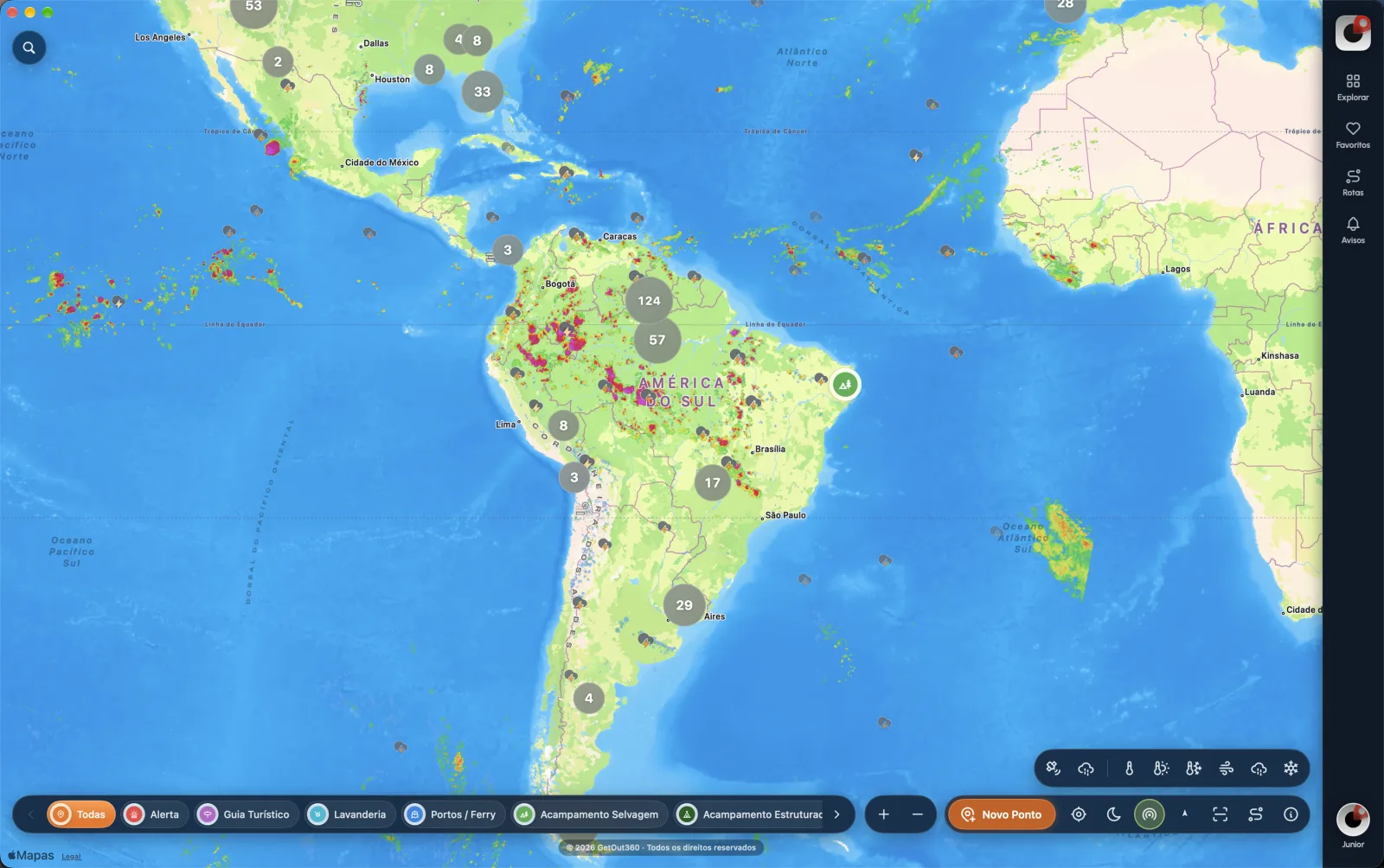
The entire map in front of you
On the big screen, the map breathes. You can see the whole continent at once, with the points grouped by region, and get closer until you get to the detail of each stop. The filters are in a bar just below: Alert, Tour Guide, Laundry, Ports and Ferry, Wild Camp, Structured Camp and more. One click and the map shows only what matters to you at that moment.
The weather layers are also there, with rain radar, clouds, temperature, and wind superimposed on the map. Notice the colorful spots in the image: that's rain happening in real time.
On the side are the shortcuts you already know from your phone: Explore, Favorites, Routes and Warnings. And the New Point button is still there, right at hand, for those who went through a nice place and want to leave the tip for those behind.
Route Planner: from Boa Vista to Ushuaia without leaving the chair
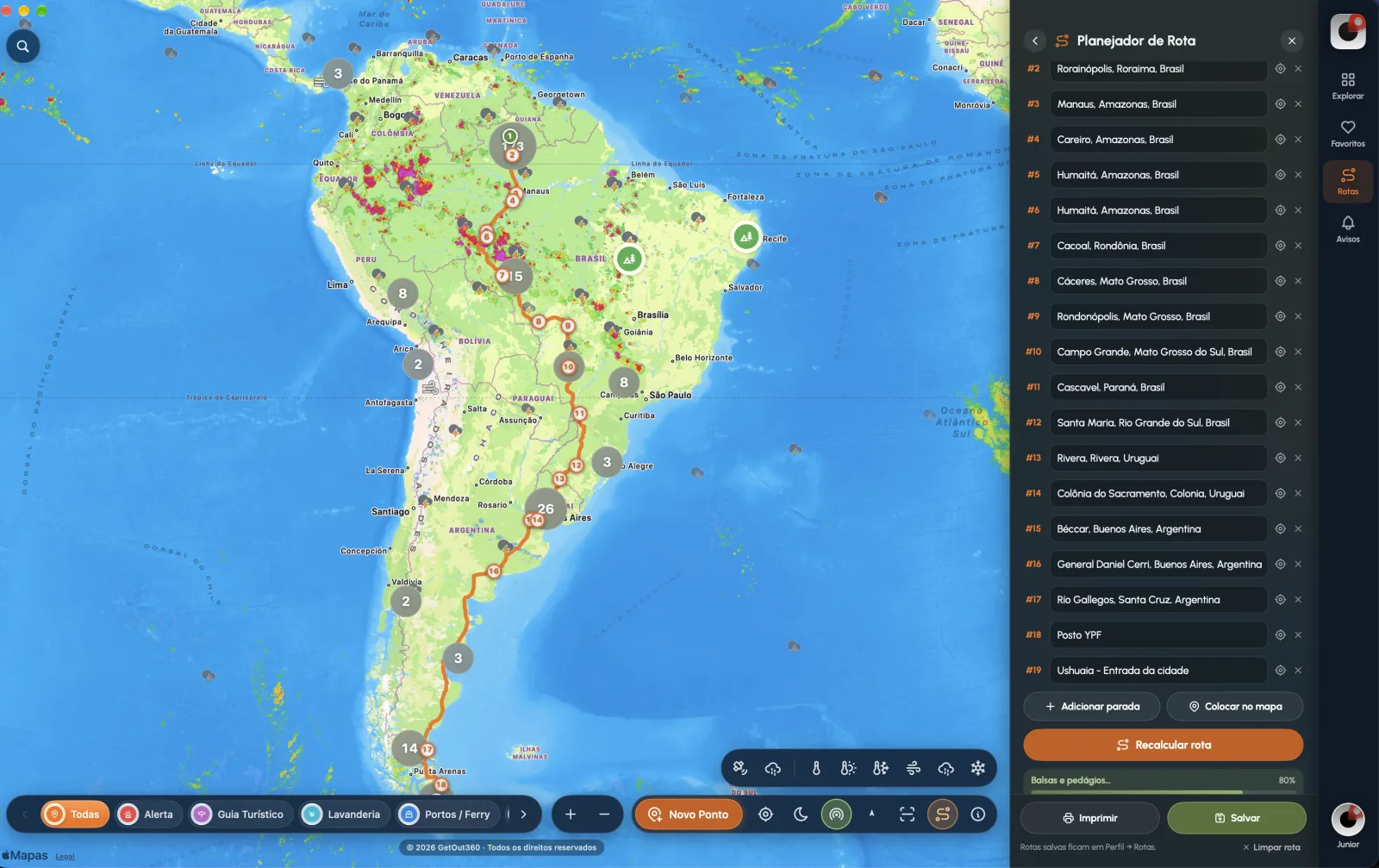
This is the feature that excites me the most. On the Mac, the Route Planner opens in a panel next to the map, and the entire route is drawn from one end to the other.
To test it, I retraced the path of our expedition to Ushuaia: leaving Boa Vista, passing through Rorainópolis, Manaus, Humaitá, Cacoal, Cáceres, Campo Grande, Cascavel and Santa Maria, crossing Uruguay through Rivera and Colônia do Sacramento, and down Argentina to Rio Gallegos and the entrance to Ushuaia. There are 19 stops on one list.
You can add a stop by typing the name or choose directly on the map, and each stop can be a specific place, such as that YPF station where you know you will need to refuel. Changed your mind? Recalculate the route on the fly. The planner also looks at ferries and tolls on the way, which in the Amazon and Patagonia make all the difference in planning.
When the route is ready, just save. It goes to your profile, in Routes, and is waiting for you on your cell phone when it's time to hit the road. You can also print it, for those who like (like me) to have the script on paper in the car.
Storm Alert on Route
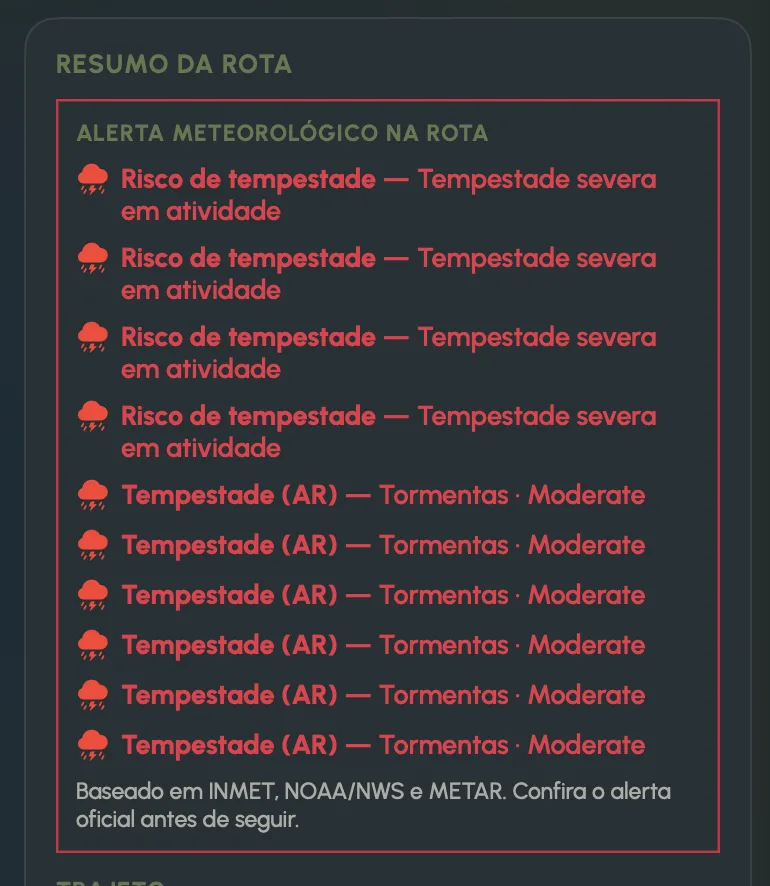
Anyone who has ever caught a heavy storm on a dirt road knows: the weather changes everything. Therefore, the route summary has a weather alert board that crosses your route with severe weather warnings.
If there is a storm in activity or a risk of a storm on any part of the trip, the warning is highlighted in red, with the type and intensity. The data comes from official sources such as INMET, NOAA/NWS and airport METAR stations, which cover Brazil to Argentina.
It is a help in deciding whether it is worth leaving early, waiting a day or changing the path. But the reminder is in the app itself: always check the official alert before continuing your trip.
What about Windows?
This question has come up a few times already, so I'll be honest: for now there is no interest in developing GetOut360 for Windows. The focus now is to make the Mac app round, along with the iOS and Android versions.
And those who use Windows are not left out: GetOut360 works directly in the browser, in getout360.com, with the map and points at your disposal.
When does it arrive?
The app is still in development, and the images in this post are from the version I'm using in testing. There is still an adjustment ahead, and I will tell you the news here on the blog and on the channel.
And I want to hear from you: what can't be missing in GetOut360 for Mac? Leave it in the comments here on the side. The best ideas go straight to the to-do list.
To follow our trips on video, just follow the channel GetOut360 on YouTube.
See you on the road, until the next turn!
Junior Max